
Midjourney Shared Folders: A Team Workflow
Midjourney AI Team · October 14, 2026 · 6 min read
Keywords: midjourney shared folders, midjourney collaborators, midjourney folder privacy
Published: October 14, 2026 Author: Midjourney AI Team

Midjourney shared folders let a team collect and develop images in one place. The important choice is who can contribute, not just who has the link. Give reviewers a way to browse, give makers a way to work, and keep the approval record separate from the stream of new images.
Shared folders arrived in the Alpha changelog dated October 7, published October 8, 2026. This is an early release. The steps below apply those roles to a small team project. We have not tested every account type, and other services may not have the same sharing controls.
Assign access around a real task
Imagine a three-person team preparing a lamp campaign. One person owns the brief, one explores image directions, and one reviews the shortlist. They do not all need to generate inside the folder. Start with those jobs rather than sending an open contribution link to everyone.
The release gives people two roles: collaborators and viewers. A collaborator can make new images in the folder and build on work there. A viewer can browse its images. The owner has a key role too: deleting a shared folder removes it for everyone. Use these roles to agree who does what.
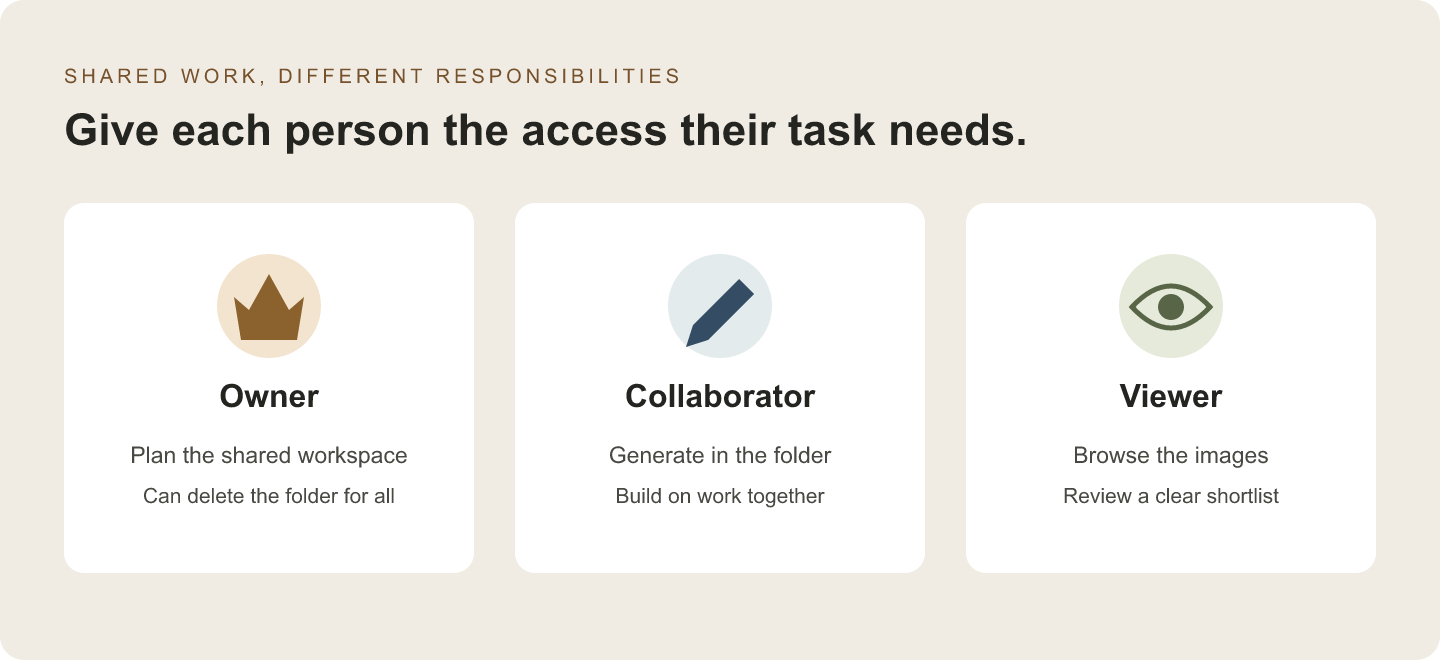
Invite people by the intended username and check the role before sharing the link. For the example campaign, the maker needs collaborator access. The reviewer can start as a viewer. The person responsible for the project should know who owns the folder and where approved files will be stored at handoff.
An invite is not a sign-off process. The release note does not promise locked versions, a record of approvals or a full client review tool. If your team needs those, keep using its own document or asset system. Do not assume the folder can do those jobs.
Pick the narrowest useful sharing mode
The release note lists private invites, viewing by link and an option for any Midjourney member to add work. Choose based on the job. A team's working folder, a public mood board and an open group exercise need different rules.
For a small client team, start with named people. If you use a viewing link, check who may receive it and what the screen says it allows. Letting anyone add work can suit a group challenge. It is a poor default for a small review round.
Before wider sharing, ask one reviewer to check access. Can they open the right folder and see the right images? Do not claim the link works for a logged-out visitor unless you checked that case. “Anyone with the link” in a release note does not answer every account or browser question.
Keep folder access separate from image privacy
A private folder is not a promise that every image in it is private. Midjourney explicitly warns that sharing does not change image privacy. Non-stealth images can still appear in Explore and on profiles, including images created within a private folder.
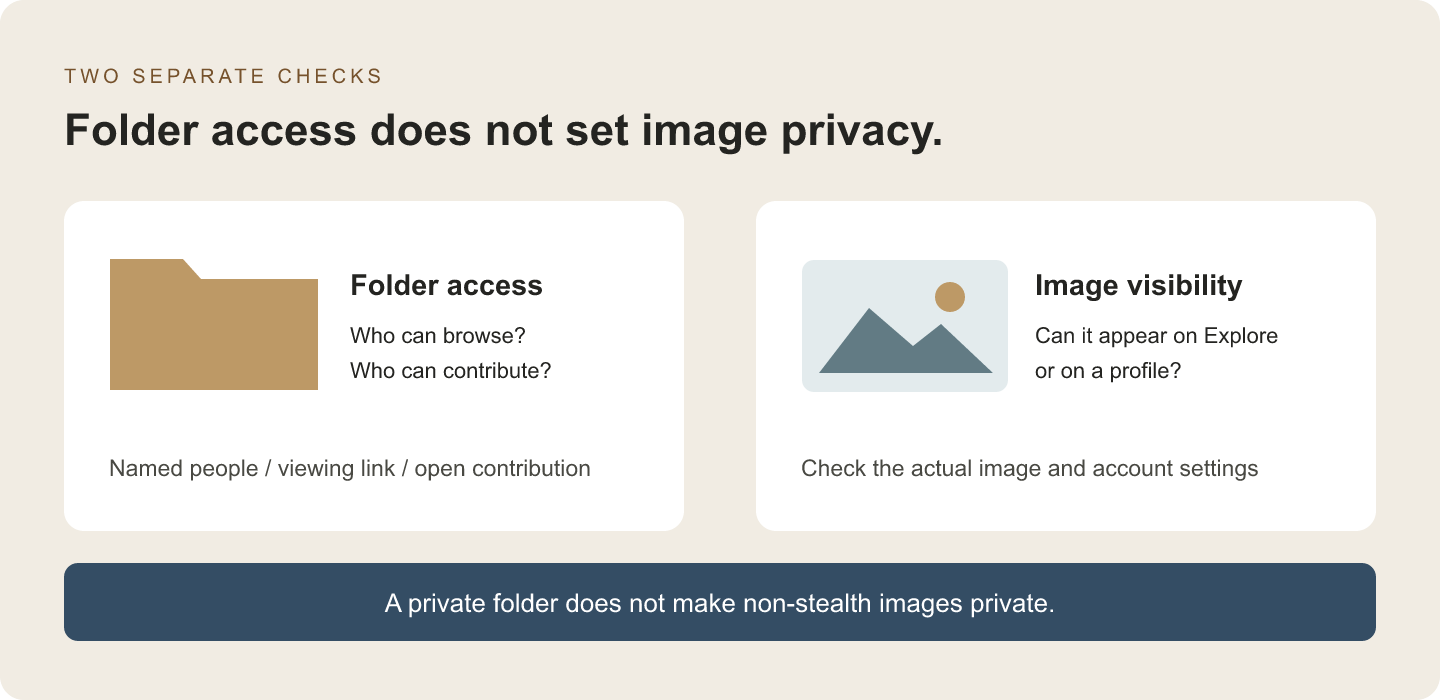
Think of these as two checks. The first asks who can enter or add work to the folder. The second asks where an image may appear. Passing the first check does not answer the second. For private work, check the account and image settings first. Do this before adding reference files or making anything that should not be public.
Use a fictional product or an already public reference for the initial team exercise. That lets people learn the workflow without treating the folder as a safe place for confidential material. Do not place private client details in a prompt because the folder name contains the word “private”.
This is a warning about who can see an image. It is not a promise about contracts, ownership or secrecy. Those questions depend on your team's needs and the service terms. If the settings are unclear, pause the private work and use a public example instead.
Make the shortlist understandable
Keep drafts and review work distinct with clear names and a short written brief. A folder full of good-looking images is hard to review without a goal. State where the image will go, who it is for and what makes a frame fail. Give the reviewer a choice to make.
For the lamp campaign, write three checks: the product outline is clear, there is room for a headline, and the background fits the page. Ask the maker to submit a small shortlist with the prompt and references recorded. That is more useful than sending every generated variation.
Use a handoff note like this in your normal team document:
Task: select one lamp image for the campaign hero
Need: clear silhouette and space for a short headline
Reject: hidden switch, awkward cable, distracting background
Shortlist: identify the exact images under review
Decision: record the chosen image and any remaining edits
This note is a suggested workflow, not a description of a built-in form. Keep decisions tied to exact images, since new generations can quickly change the visible feed. If a reviewer says “the second one”, ask them to identify it before more work enters the folder.
Record settings even when the folder remembers them
The same October update says folder prompt pills now remain across sessions. This helps you pick up where you left off, but it does not replace a brief. A saved setting may belong to yesterday's test rather than today's agreed plan.
At the start of a working session, compare the active parameters and references with the current task. After switching projects, make the same quick check. Our folder-default checklist gives a way to record what you selected without assuming every setting follows every person or device.
Keep one clear reason for each unusual setting. If nobody can explain why it is there, test without it before making it a project rule. A good workflow shows why you made each choice. It does not turn a stray setting into a rule.
Close the project without losing its decisions
Before removing a shared folder, save the approved exports and the final handoff note. The announcement says creators retain their images in their own history when the owner deletes the shared folder. That is different from retaining the shared review context for everyone.
Tell collaborators when the working folder is no longer the place for new contributions. Keep a stable location for the selected assets and record which edits remain. Persistent edit history is still listed as upcoming in this changelog, so do not build the handoff around an assumed history feature.
In short, shared folders give a team one place to work. Clear roles and a written note keep that work useful. Start with a small group. Check who can enter the folder and who can see each image, then save the chosen files outside the changing feed.
Release context: October 7 Alpha changelog. For the broader workspace, read our Alpha organization guide.